
1. Access Management Options
Locate a Participant
Access Your Event
Open the dashboard of your concerned event
Click on the "Participants" tab in the menu
Identify the Participant
Browse through the list of your registered participants
Use the search bar to quickly locate a specific participant
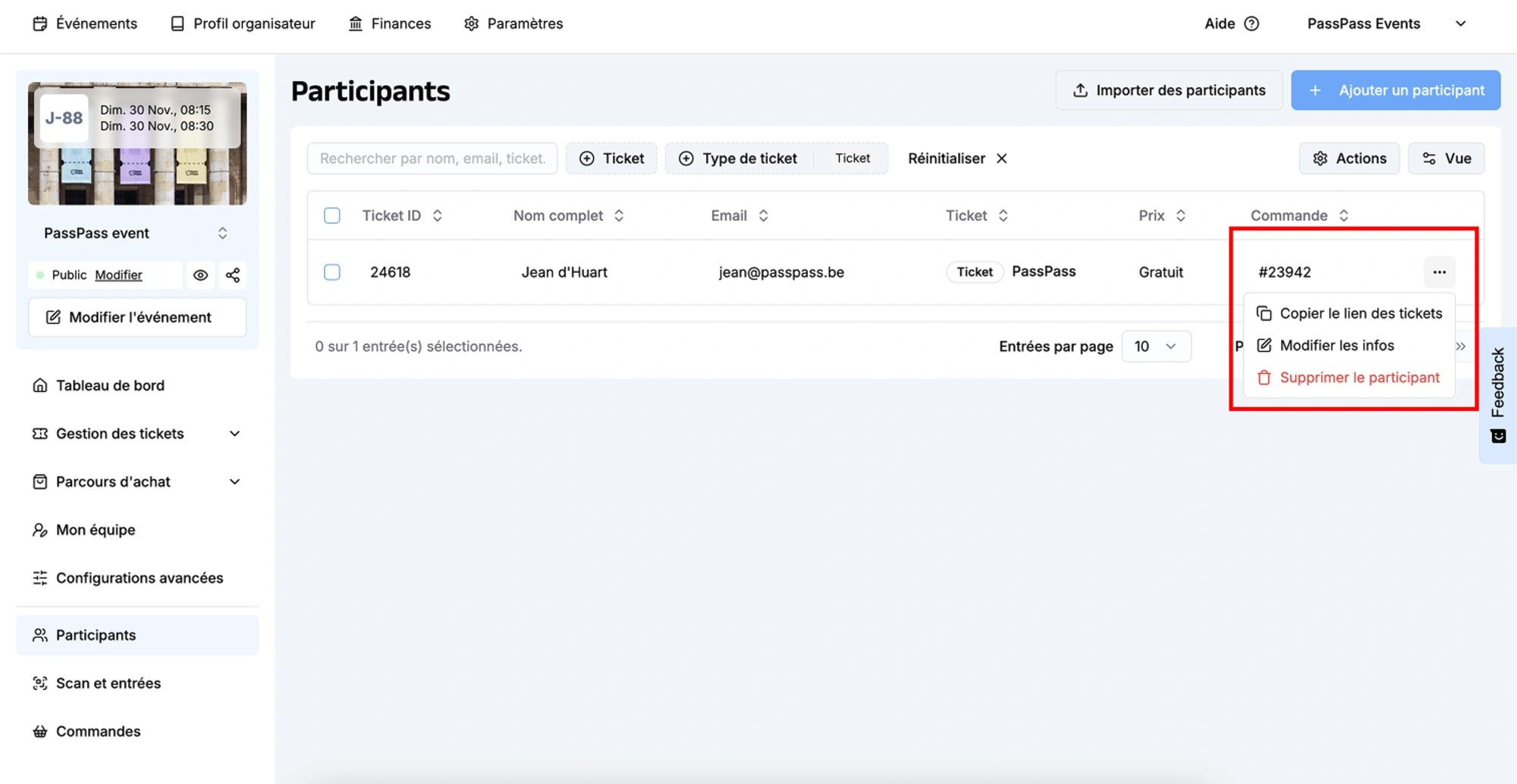
Participants are displayed with their name, email, and ticket type
Access Actions
Locate the three dots (...) to the right of each row in the table
Click on these dots to open the actions menu
2. Edit Participant Information
Editing Procedure
Open Editing
Click on the three dots (...) to the right of the participant's row
Select "Edit" from the dropdown menu
Edit Information
First Name : Edit the first name if necessary
Last Name : Correct the last name
Email : Update the email address
Tickets : Add, remove, or modify assigned tickets
Save Changes
Verify the modified information
Click on "Save" to confirm the changes
Email Address Modification
No automatic email resend.
When you modify a participant's email address, no new confirmation email is automatically sent to the new address.
Recommended Procedure:
Modify the email address in the dashboard
Copy the direct link to the participant's ticket via the three dots (...) to the right of the participant's row
Personally send this link to the new email address
Inform the participant of the change and the procedure
This manual step ensures that the participant receives their ticket information at their new address.
3. Remove a Participant
Important Restriction: Free Tickets Only
Deletion Limitation Deleting participants is currently only possible for free tickets. Participants who have purchased paid tickets through the online ticketing system cannot be removed from the dashboard.
Deletion Procedure
Verify Ticket Type
Ensure the participant only has free tickets
Paid tickets appear with a price indication
Open Deletion Options
Click on the three dots (...) to the right of the participant's row
Select "Delete" from the dropdown menu
Deletion Confirmation
A confirmation window appears
Read the warning carefully
Confirm your choice by clicking on "Permanently Delete"