

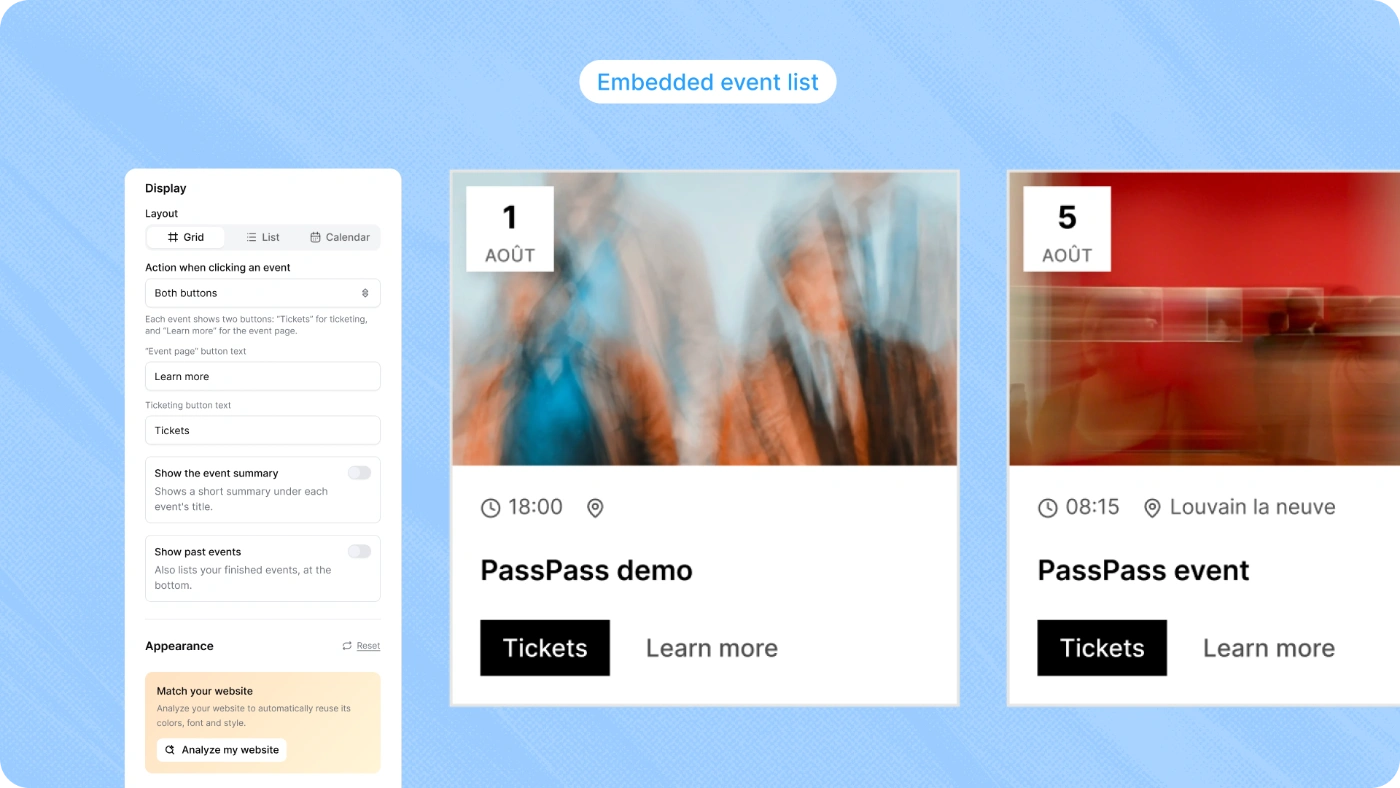
Automatically display the list of your PassPass events on your website, reflecting your brand. When you create or modify an event on PassPass, it automatically appears on your site, no maintenance required.
Go to Settings → Integrations → Event List to configure the widget.
Setup
Click on New Integration
Configure the appearance and behavior. A live preview updates in real-time with each modification
Click on Embed, copy the code and paste it on your site where the list should appear. You can also send the instructions to your webmaster directly from this step
The code looks like this:
<div id="passpass-events"></div>
<script async src="https://embedded.passpass.be/embed.js"
  data-embed-id="pk_embed_xxx"
  data-target="#passpass-events"></script>
The widget is inserted where you place the <div> and adapts to the width of your section.
Display
Layout
Three layout options depending on your context:
Grid → visual cards, ideal for a dedicated "Our Events" page
List → compact agenda format, suitable for a sidebar or a reduced section
Calendar → daily timeline, when dates are paramount
Click Action on an Event
Open the event page → redirects to the full event page on PassPass (description, banner, location, dates, tickets...) for visitors who want to know more before purchasing
Open the ticketing on your site → directly opens the purchase modal on your site (ticket selection, form, payment) without going through the event page. For a more direct purchase path
Both buttons → each event displays "Tickets" and "Learn more". Ideal for maximizing conversion while keeping access to the full page
Button text is customizable (e.g., "Book", "View Event").
Additional Options
Show past events → completed events appear at the bottom of the list, faded out
Show summary → adds the short description of each event
Customize Appearance
Adapt the widget to your site's style:
Colors → button color (your brand color), background color, card color
Font and rounding → font style and corner radius
Button style → default, square or rounded
Transparent cards (grid and calendar) → image and text without frame, to fully blend with your site
Analyze My Site
Use our analysis tool to pre-configure the widget style based on your website. PassPass automatically detects your colors and font.
Allowed Origins
The widget only works on domains you authorize. Add each domain from the integration configuration.
Without an authorized domain, the widget will not display on your site. Remember to add your domain before testing.
Propagate Parameters via Your URL
You can pre-configure the widget by adding parameters to your page URL. When the modal opens, these parameters are automatically taken into account.
Two parameters available:
pp_lang → forces the modal language (FR, NL or EN). Useful if your page is in Dutch and you want the ticketing to also display in Dutch.
pp_code → pre-fills a promo code. The visitor arrives with the promotion already applied or the hidden ticket already unlocked.
Add the parameters at the end of your URL with a ? before the first parameter, and an & between each additional parameter.
One parameter: yoursite.com?pp_lang=NL Two parameters: yoursite.com?pp_lang=NL&pp_code=PARTNER
The visitor arrives on your page, opens the modal, and has the ticketing directly configured according to your parameters. Ideal for targeted campaigns (newsletter, social media, partners).
Best Practices
Background color → use the same color as your section so the widget integrates seamlessly. The widget is edge-to-edge and inherits your page margins
Button color → choose a well-contrasted color. A light button on a light background becomes unreadable
Grid for a dedicated page, List for a compact section, Calendar when dates are paramount
"Both buttons" if you want to maximize conversion while keeping access to the full page
Only public and published events appear. Drafts and private events are excluded
Automatic synchronization → new event published = automatic appearance, nothing to copy
Multilingual → the widget displays in the visitor's language (FR/EN/NL)
Responsive → adapts to mobile and desktop automatically
Troubleshooting
The widget does not display → check that your domain is in the allowed origins and that the
<div id="passpass-events">is present on your pageChanges do not appear → remember to save the configuration. The preview shows unsaved changes
No visible events → check that your events are published and public
For any technical questions or need for assistance, feel free to contact our support.